
परिचय
This manual provides comprehensive instructions for the setup, operation, and maintenance of your waveshare 7-inch Capacitive Touch LCD Display Kit for Raspberry Pi 4 Model B. Please read this manual thoroughly before use to ensure proper functionality and to maximize your product experience.
प्याकेज सामग्री
तल सूचीबद्ध सबै वस्तुहरू तपाईंको प्याकेजमा समावेश छन् भनी प्रमाणित गर्नुहोस्:
- 7-inch Capacitive Touch LCD Display
- Raspberry Pi 4 Model B (4GB RAM version)
- MicroSD Card (pre-loaded with system, typically 16GB)
- USB पावर एडाप्टर
- USB-A देखि USB-C केबल (पावरको लागि)
- HDMI Cable (Micro HDMI to Standard HDMI)
- USB-A to Micro USB Cable (for touch functionality)
- Acrylic Case components (top, bottom, side panels, stand)
- Mounting hardware (screws, standoffs)
- माइक्रोएसडी कार्ड रिडर

Image: All components included in the waveshare 7-inch Display Kit, including the LCD, Raspberry Pi 4, cables, power adapter, acrylic case parts, and a microSD card with reader.
सेटअप निर्देशनहरू
Follow these steps to assemble and set up your display kit:
- Prepare the Raspberry Pi: Insert the provided MicroSD card into the Raspberry Pi 4 Model B.
- Mount the Raspberry Pi: Secure the Raspberry Pi 4 to the back of the 7-inch LCD display using the provided standoffs and screws. Ensure proper alignment with the display's connectors.
- डिस्प्ले केबलहरू जडान गर्नुहोस्:
- Connect one end of the Micro HDMI cable to the Raspberry Pi's Micro HDMI port and the other end to the display's HDMI input.
- Connect the USB-A to Micro USB cable from a USB 2.0 port on the Raspberry Pi to the Micro USB port on the display. This provides power for the display's backlight and enables touch functionality.
- Assemble the Acrylic Case: Carefully attach the acrylic case components around the assembled display and Raspberry Pi. Refer to the case assembly diagram for correct orientation.
- पावर जोड्नुहोस्: Plug the USB power adapter into a wall outlet and connect the USB-A to USB-C cable to the Raspberry Pi's USB-C power input.
- प्रारम्भिक बुट: The system should power on automatically. The display will show the boot sequence.

Image: The fully assembled waveshare 7-inch Display Kit, showing the Raspberry Pi 4 mounted behind the screen, connected with cables, and powered by an adapter.
सञ्चालन
Once the display kit is powered on, the pre-installed operating system (typically Raspbian) will boot. You can interact with the system using the capacitive touch screen.
- टच कार्यक्षमता: The 7-inch display supports up to five-point capacitive touch when running Raspbian. For other supported operating systems like Ubuntu, Kali, or WIN10 IoT, it typically supports single-point touch.
- जडान बाह्य उपकरणहरू: Use the USB ports on the Raspberry Pi to connect a keyboard, mouse, or other USB devices as needed.
- नेटवर्क जडान: The Raspberry Pi 4 supports Gigabit Ethernet and 2.4/5GHz Wi-Fi for internet access.
- अडियो आउटपुट: Audio can be output via the 3.5mm audio jack or HDMI.
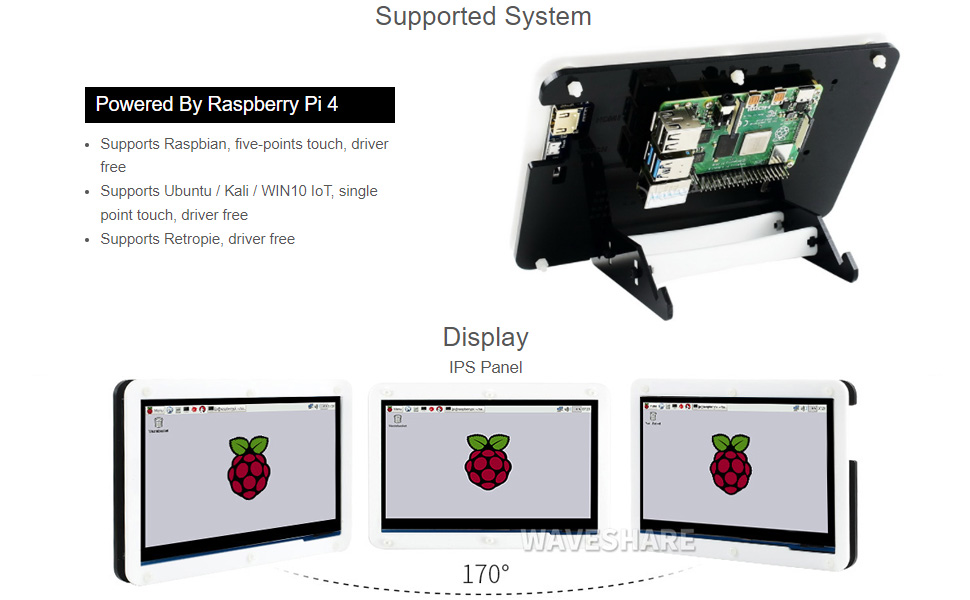
Image: A hand interacting with the capacitive touch screen, demonstrating its functionality with a graphical user interface.
समर्थित अपरेटिङ सिस्टमहरू
The waveshare 7-inch Display Kit is compatible with various operating systems for the Raspberry Pi 4 Model B:
- रास्पबियन: Supports five-point touch, driver-free.
- Ubuntu / Kali / WIN10 IoT: Supports single-point touch, driver-free.
- Retropie: Driver-free support.

Image: Visual representation of the display showing different viewing angles and indicating support for various operating systems like Raspbian, Ubuntu, Kali, and Windows 10 IoT.
मुख्य विशेषताहरु
- 7 इन्च IPS डिस्प्ले: चौडा viewing angle with 1024x600 resolution.
- क्यापेसिटिव टच: Supports 5-point touch (with Raspbian) for intuitive interaction.
- Integrated Raspberry Pi 4: Powered by Broadcom BCM2711B0 Quad-core 64-bit SoC.
- मेमोरी: ६ जीबी LPDDR4 र्याम।
- जडान: Dual-band 2.4/5GHz Wi-Fi, Bluetooth 5.0, Gigabit Ethernet.
- पोर्टहरू: 2x USB 3.0, 2x USB 2.0, 2x Micro HDMI (up to 4Kp60), 4-pole stereo audio, 2-lane MIPI DSI display port, 2-lane MIPI CSI camera port, 40-pin GPIO header.
- पावर इनपुट: USB-C 5V/3A.
- भण्डारण: माइक्रो एसडी कार्ड स्लट।

Image: Detailed diagram of the Raspberry Pi 4 Model B board, highlighting its processor, RAM, various ports (USB, HDMI, Ethernet, GPIO), and wireless capabilities.
मर्मतसम्भार
- सरसफाई: Use a soft, dry cloth to clean the display and case. For stubborn smudges on the screen, a slightly damp, लिन्ट-फ्री कपडा प्रयोग गर्न सकिन्छ। घर्षण क्लीनर वा घोलकहरूबाट बच्नुहोस्।
- सफ्टवेयर अपडेटहरू: Regularly update the operating system and installed software on your Raspberry Pi to ensure optimal performance and security.
- वातावरणीय अवस्था: Operate the device in a clean, dry environment. Avoid extreme temperatures, direct sunlight, and high humidity.
- शक्ति व्यवस्थापन: Always shut down the Raspberry Pi gracefully through the operating system before disconnecting power to prevent data corruption.
समस्या निवारण
- कुनै प्रदर्शन आउटपुट छैन:
- Ensure the Micro HDMI cable is securely connected to both the Raspberry Pi and the display.
- Verify the Raspberry Pi is receiving power (check the power LED on the Pi).
- Confirm the MicroSD card is properly inserted and contains a valid operating system image.
- टच स्क्रिनले प्रतिक्रिया दिइरहेको छैन:
- Check that the USB-A to Micro USB cable is connected from the Raspberry Pi to the display.
- Ensure the operating system supports touch functionality and that necessary drivers (if any, though typically driver-free for supported OS) are loaded.
- Restart the Raspberry Pi.
- System not booting:
- Confirm the power supply is adequate (5V/3A recommended for Raspberry Pi 4).
- Re-flash the operating system image onto the MicroSD card.
- कुनै पनि ढिलो जडान वा क्षतिग्रस्त घटकहरूको लागि जाँच गर्नुहोस्।
प्राविधिक विनिर्देशहरू
| डिस्प्ले साइज | १५.६ इन्च |
| संकल्प | ६६ x ३७ |
| प्यानल प्रकार | IPS |
| टच प्रकार | Capacitive (5-point with Raspbian, 1-point with others) |
| प्रोसेसर | Broadcom BCM2711B0, Quad-core 64-bit SoC |
| RAM | 4 GB LPDDR4 |
| भण्डारण | ३२ जीबी माइक्रोएसडी कार्ड (समावेश गरिएको) |
| ताररहित जडान | 2.4/5GHz Wi-Fi, Bluetooth 5.0 |
| तार जडान | गिगाबिट इथरनेट |
| भिडियो आउटपुट | 2x Micro HDMI (up to 4Kp60) |
| अडियो आउटपुट | 4-pole stereo audio jack |
| USB पोर्टहरू | 2x USB 3.0, 2x USB 2.0 |
| पावर इनपुट | USB-C 5V/3A |
| आयाम (प्याकेज) | १० x ३ x ३ इन्च |
| वस्तुको वजन | 1.43 पाउन्ड |

Image: Technical drawing showing the dimensions of the 7-inch display in millimeters and illustrating the two available stand angles (45° and 60°) for the acrylic case.
वारेन्टी र समर्थन
For warranty information and technical support, please refer to the official waveshare webसाइटमा जानुहोस् वा सिधै उनीहरूको ग्राहक सेवामा सम्पर्क गर्नुहोस्। कुनै पनि वारेन्टी दावीको लागि खरिदको प्रमाणको रूपमा आफ्नो खरिद रसिद राख्नुहोस्।
अनलाइन स्रोतहरू: For additional documentation, tutorials, and community support, visit the waveshare official webसाइट।


