
परिचय
This manual provides essential information for the proper setup, operation, and maintenance of your Philips 346B1C Curved Monitor. This 34-inch WQHD (3440 x 1440) display features a 100 Hz refresh rate, 5ms response time, and a curved VA panel for an immersive viewing experience. Key features include USB-C docking, MultiView functionality, FreeSync technology, LowBlue Mode, and FlickerFree technology for enhanced user comfort and productivity.

छवि: अगाडि view of the Philips 346B1C curved monitor, showcasing its ultrawide display and key features like WQHD, USB-C Docking, and MultiView.
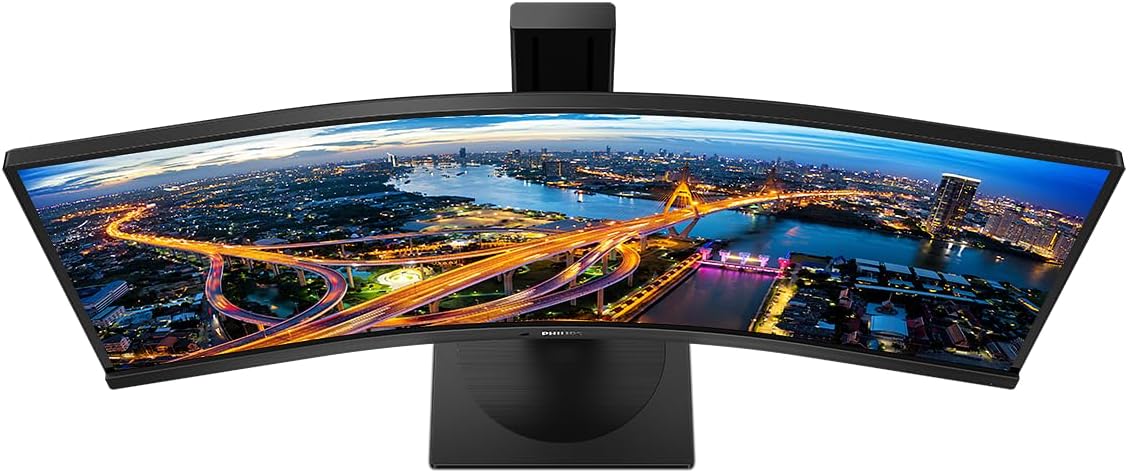
छवि: माथिबाट तल view of the Philips 346B1C curved monitor, emphasizing the curvature of the screen.
बक्समा के छ
सेटअप अगाडि बढ्नु अघि सबै कम्पोनेन्टहरू उपस्थित छन् भनी प्रमाणित गर्नुहोस्।
- Philips 346B1C Curved Monitor
- मनिटर स्ट्यान्ड (आधार र घाँटी)
- पावर केबल
- HDMI केबल
- DisplayPort केबल
- USB-C देखि USB-C केबल
- USB-A to USB-B Cable (Upstream)
- Documentation (Quick Start Guide, User Manual CD)
सेटअप निर्देशनहरू
1. स्ट्यान्ड जम्मा गर्दै
- खरोंचहरू रोक्नको लागि मनिटरको अनुहार नरम, सफा सतहमा तल राख्नुहोस्।
- स्ट्यान्ड नेकलाई मनिटर प्यानलमा जोड्नुहोस्। यो सुरक्षित रूपमा ठाउँमा क्लिक भएको छ वा दिइएको छ भने स्क्रूले बाँधिएको छ भनी सुनिश्चित गर्नुहोस्।
- स्ट्यान्ड बेसलाई स्ट्यान्ड नेकमा जोड्नुहोस्। बेसको तलबाट थम्ब स्क्रू वा स्क्रूहरू कस्नुहोस्।

छवि: पछाडि view of the Philips 346B1C monitor, showing the stand attachment point and VESA mounting holes.
२. तपाईंको कम्प्युटरमा जडान गर्दै
निम्न विधिहरू मध्ये एक प्रयोग गरेर आफ्नो कम्प्युटरमा मनिटर जडान गर्नुहोस्:
- HDMI जडान: HDMI केबलको एउटा छेउलाई मनिटरको HDMI पोर्टमा र अर्को छेउलाई आफ्नो कम्प्युटरको HDMI आउटपुटमा जडान गर्नुहोस्।
- डिस्प्लेपोर्ट जडान: Connect one end of the DisplayPort cable to the monitor's DisplayPort and the other end to your computer's DisplayPort output.
- USB-C जडान: Connect one end of the USB-C cable to the monitor's USB-C port and the other end to your computer's USB-C port. This connection supports video, data, and power delivery (up to 90W) to your laptop.
For USB hub functionality, connect the USB-A to USB-B upstream cable from your computer to the monitor's USB-B upstream port.
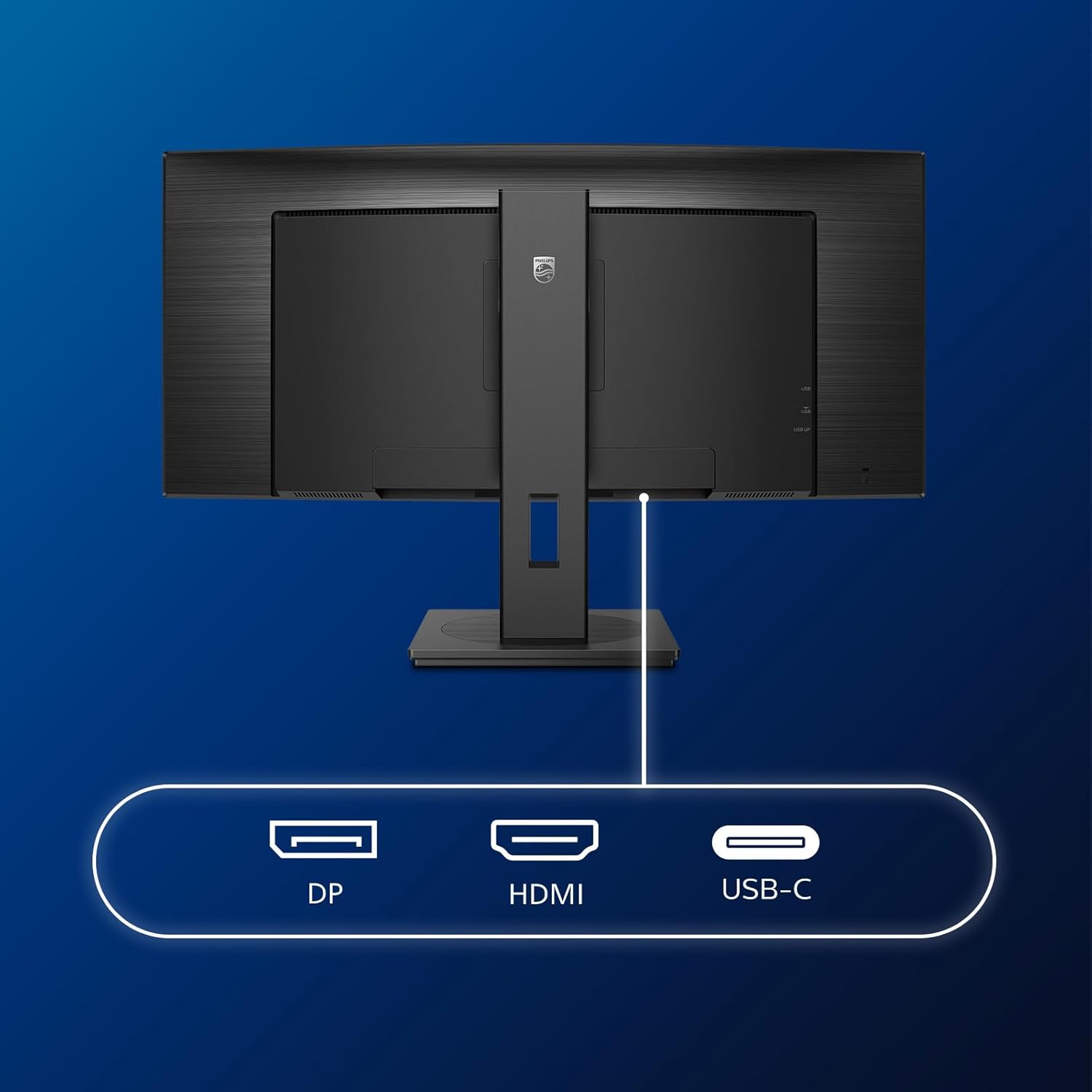
छवि: विस्तृत view of the monitor's input ports, including DisplayPort (DP), HDMI, and USB-C, for connecting to various devices.
3. पावर जडान
पावर केबललाई मनिटरको पावर इनपुटमा र त्यसपछि ग्राउन्ड गरिएको विद्युतीय आउटलेटमा जडान गर्नुहोस्।
४.३। प्रारम्भिक पावर अन
Press the power button located on the monitor to turn it on. The monitor should automatically detect the input signal. If not, use the On-Screen Display (OSD) menu to select the correct input source.
सञ्चालन निर्देशनहरू
अन-स्क्रिन डिस्प्ले (OSD) मेनु
The OSD menu allows you to adjust various monitor settings. Use the joystick control located on the back or bottom of the monitor to navigate the menu.
- चमक/कन्ट्रास्ट: डिस्प्लेको समग्र चमक र कन्ट्रास्ट समायोजन गर्नुहोस्।
- रङ सेटिङहरू: रङको तापक्रम, गामा र रङ ठाउँलाई फाइन-ट्यून गर्नुहोस्।
- इनपुट चयन: HDMI, DisplayPort, र USB-C इनपुटहरू बीच म्यानुअल रूपमा स्विच गर्नुहोस्।
- अडियो: भोल्युम समायोजन गर्नुहोस् वा बिल्ट-इन स्पिकरहरू म्यूट गर्नुहोस्।
- तस्वीर मोड: Select from preset picture modes (e.g., Standard, Gaming, Text).
बहुView कार्यक्षमता
बहुView feature allows you to connect and view content from two different sources simultaneously on the screen. Access this feature through the OSD menu to select Picture-by-Picture (PbP) or Picture-in-Picture (PiP) modes and configure input sources.
USB-C डकिङ
When connected via USB-C, the monitor acts as a docking station, providing video, data transfer through its integrated USB hub, and power delivery to charge your connected laptop (up to 90W).
SmartErgoBase and Adjustability
The monitor's SmartErgoBase allows for ergonomic adjustments including height, swivel, and tilt to optimize your viewसान्त्वना।

Image: Illustrations demonstrating the monitor's adjustable features, including height adjustment, tilt, and swivel capabilities for ergonomic positioning.
आँखा आराम सुविधाहरू
- कम नीलो मोड: Reduces harmful shortwave blue light emissions to prevent eye strain. Activate this mode via the OSD menu.
- FlickerFree Technology: थप आरामदायी बनाउन चमकलाई नियन्त्रण गर्छ र झिलिमिली कम गर्छ viewing. This feature is always active.
- PowerSensor & LightSensor: These sensors automatically adjust monitor brightness based on ambient light conditions and user presence, saving energy and reducing eye strain.
मर्मतसम्भार
मोनिटर सफा गर्दै
- सफा गर्नु अघि सधैं मनिटर अनप्लग गर्नुहोस्।
- हल्का नरम, लिन्ट-रहित कपडा प्रयोग गर्नुहोस् dampपानी वा हल्का, घर्षण नगर्ने स्क्रिन क्लिनरले भिजाउनुहोस्।
- Do not use alcohol, solvents, or ammonia-based cleaners, as these can damage the screen surface.
- धुलो र दाग हटाउन स्क्रिनलाई बिस्तारै पुछ्नुहोस्।
- मनिटर सफा गर्नुहोस् casing नरम, सुख्खा कपडाले पुछ्नुहोस्।
सामान्य हेरचाह
- मनिटर वा यसको केबलहरूमा भारी वस्तुहरू नराख्नुहोस्।
- मनिटरलाई प्रत्यक्ष घाम, अत्यधिक गर्मी वा अत्यधिक चिसोमा नदेखाउनुहोस्।
- मनिटर वरिपरि उचित वेंटिलेशन सुनिश्चित गर्नुहोस्।
समस्या निवारण
यदि तपाईंले आफ्नो मनिटरमा समस्याहरू सामना गर्नुभयो भने, निम्न सामान्य समस्या निवारण चरणहरू हेर्नुहोस्:
| समस्या | सम्भावित कारण | समाधान |
|---|---|---|
| स्क्रिनमा कुनै छवि छैन | पावर केबल विच्छेद भयो; भिडियो केबल विच्छेद भयो; गलत इनपुट स्रोत चयन गरियो। | Ensure power cable is securely connected; Check video cable connections (HDMI, DP, USB-C); Select correct input source via OSD menu. |
| छवि धमिलो वा विकृत छ | गलत रिजोल्युसन; ग्राफिक्स ड्राइभर समस्या। | डिस्प्ले रिजोल्युसन ३८४० x २१६० मा सेट गर्नुहोस्; ग्राफिक्स कार्ड ड्राइभरहरू अपडेट गर्नुहोस्। |
| वक्ताहरु बाट कुनै आवाज | Volume muted or too low; Incorrect audio output selected on computer. | Adjust monitor volume via OSD; Check computer's audio output settings. |
| USB पोर्टहरू काम गर्दैनन् | USB अपस्ट्रिम केबल जडान गरिएको छैन। | Ensure the USB-A to USB-B upstream cable is connected from the monitor to your computer. |
For further assistance, please refer to the support section or contact Philips customer service.
निर्दिष्टीकरणहरू
| सुविधा | विवरण |
|---|---|
| ब्रान्ड | फिलिप्स |
| मोडेल नम्बर | 346B1C |
| स्क्रिन साइज | १.34.१ ईन्च (.86 XNUMX.२ सेमी) |
| संकल्प | ३४४० x १४४० (WQHD) |
| पक्ष अनुपात | ००:०५ |
| स्क्रिन सतह | घुमाउरो VA प्यानल |
| ताजा दर | ५० हर्ट्ज |
| प्रतिक्रिया समय | 5 Milliseconds (GtG) |
| कन्ट्रास्ट अनुपात | 3000:1 (सामान्य) |
| चमक | 300 cd/m² |
| Viewकोण कोण | 178° (H) / 178° (V) |
| जडान | 1x HDMI 2.0, 1x DisplayPort 1.2, 1x USB-C 3.2 Gen 1 (upstream, power up to 90W), 1x USB-B (upstream), 4x USB 3.2 (downstream), RJ45 (Ethernet) |
| अनुकूली सिंक | FreeSync |
| बिल्ट-इन स्पिकरहरू | 2x 5W |
| पावर खपत | 5 Watts (Eco mode) |
| वजन | 7.8 Kilograms (with stand) |
वारेन्टी र समर्थन
वारेन्टी जानकारी
This Philips monitor comes with a ७ वर्षको निर्माताको वारेन्टी. The specific terms and conditions of the warranty can be found in the detailed documentation provided with your product or on the official Philips support website. Your statutory rights as a consumer are not affected by this warranty.
ग्राहक समर्थन
For technical assistance, product inquiries, or warranty claims, please visit the official Philips support website or contact their customer service department. You may need your monitor's model number (346B1C) and serial number (found on the back of the monitor) when contacting support.
फिलिप्स समर्थन Webसाइट: www.philips.com/support


