
1. परिचय
The YESIDO TV10 4G HD Wireless Screen Display Receiver is designed to wirelessly mirror content from your smartphone, tablet, or laptop to a larger display such as a TV or projector. It supports 4K resolution and is compatible with various operating systems, including iOS, Android, and Windows, utilizing technologies like Miracast and AirPlay.
2. सुरक्षा जानकारी
- उपकरणलाई पानी र उच्च आर्द्रता भएको वातावरणबाट टाढा राख्नुहोस्।
- यन्त्रलाई अत्यधिक तापक्रममा नदेखाउनुहोस्।
- यन्त्रलाई बलियो प्रभावहरूमा छोड्न वा अधीन नगर्नुहोस्।
- Use only the provided power cable or a certified 5V/1A USB power adapter.
- उपकरण आफैंले छुट्याउने वा मर्मत गर्ने प्रयास नगर्नुहोस्। योग्य सेवा कर्मचारीहरूलाई सम्पर्क गर्नुहोस्।
3. प्याकेज सामग्री
- YESIDO TV10 4G Wireless Screen Display Receiver
- USB Power Cable with Wi-Fi Antenna
- प्रयोगकर्ता पुस्तिका
4. उत्पादन समाप्तview
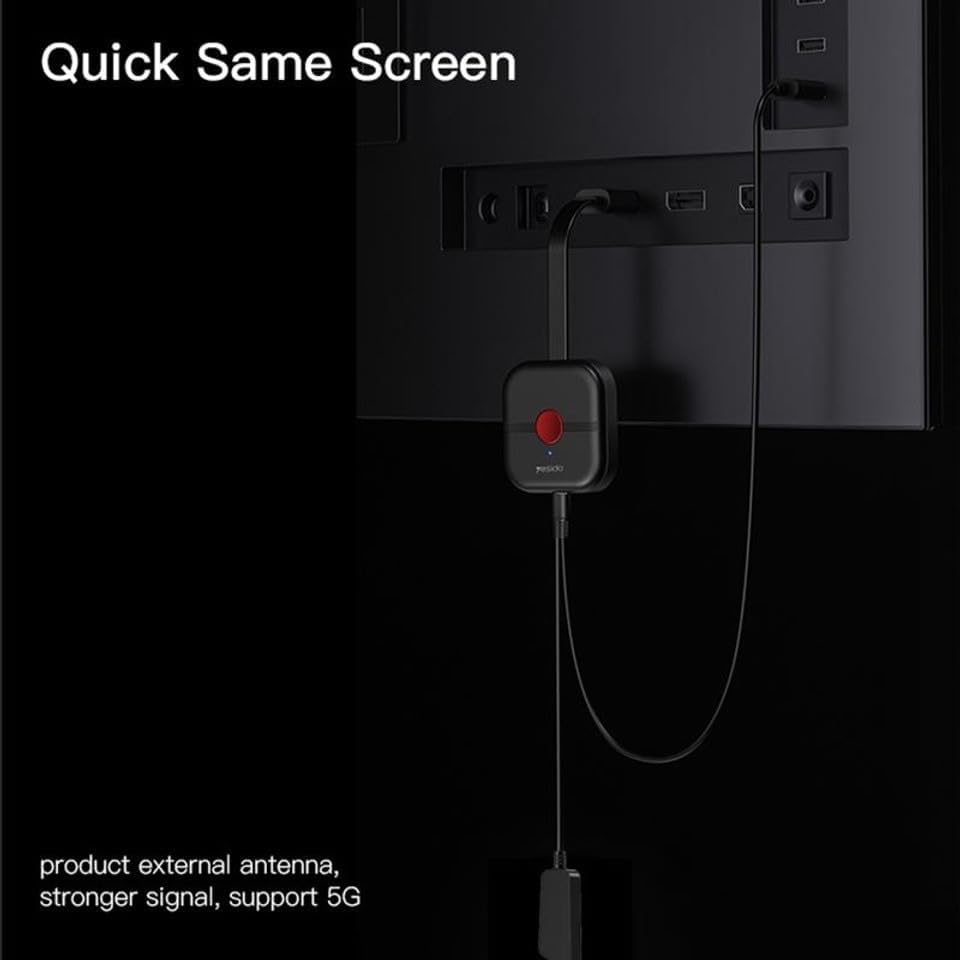
The YESIDO TV10 4G features a compact design with an integrated HDMI connector and a USB port for power and the external Wi-Fi antenna. It is designed for easy portability and discreet installation behind your display.
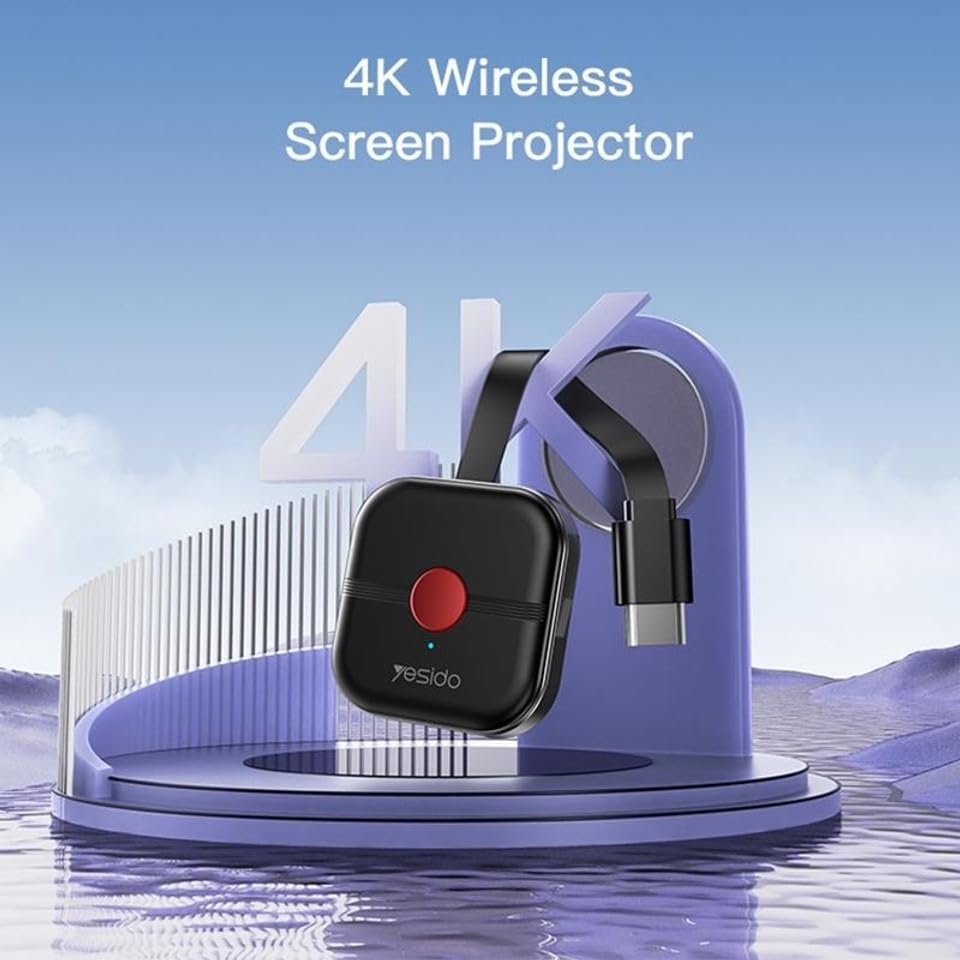
Image: The YESIDO TV10 4G dongle connected to an HDMI port on the back of a television, with its USB power cable and external antenna visible. This illustrates the compact setup.
छवि: एउटा चित्रणात्मक रेखाचित्र देखाउँछasing the high-performance main control chip, emphasizing its efficiency and stability for reliable wireless display.
5. सेटअप
१ उपकरण जडान गर्दै
- Plug the YESIDO TV10 4G into an available HDMI port on your TV or projector.
- Connect the USB power cable to the micro-USB port on the dongle.
- Plug the other end of the USB power cable into a USB power adapter (5V/1A recommended) or a USB port on your TV that provides sufficient power.
- Ensure the external Wi-Fi antenna is positioned for optimal signal reception.
- Switch your TV/projector's input source to the corresponding HDMI port. You should see the YESIDO TV10 4G startup screen.
5.2 Wi-Fi मा जडान गर्दै
- On the TV screen, locate the Wi-Fi network name (SSID) and password displayed by the YESIDO TV10 4G.
- On your smartphone, tablet, or laptop, go to Wi-Fi settings and connect to the YESIDO TV10 4G's Wi-Fi network.
- खोल्नुहोस् ए web browser on your device and enter the IP address displayed on the TV screen (e.g., 192.168.x.x) to access the dongle's settings page.
- From the settings page, select 'Internet' or 'Wi-Fi Setup' and connect the dongle to your home Wi-Fi network. This allows the dongle to access the internet and for your device to maintain internet connectivity while mirroring.
6. सञ्चालन निर्देशनहरू
6.1 Screen Mirroring (iOS/Android/Windows)
Once the YESIDO TV10 4G is connected to your home Wi-Fi network, you can initiate screen mirroring from your compatible device:
- iOS उपकरणहरूको लागि (एयरप्ले): Swipe down from the top-right corner (or up from the bottom for older models) to open Control Center. Tap 'Screen Mirroring' or 'AirPlay Mirroring' and select the YESIDO TV10 4G from the list.
- For Android Devices (Miracast/Smart View/स्क्रिन कास्ट): Go to your device's settings and look for 'Smart View', 'Screen Cast', 'Wireless Display', 'MirrorShare', or similar options. Select the YESIDO TV10 4G from the detected devices.
- For Windows Devices (Project to a wireless display): थिच्नुहोस् विन्डोज कुञ्जी + पी, then select 'Connect to a wireless display'. Choose the YESIDO TV10 4G from the list.
९.१ तस्विर गुणस्तर
The YESIDO TV10 4G supports up to 4K HD picture quality, providing clear and detailed visuals for your mirrored content.
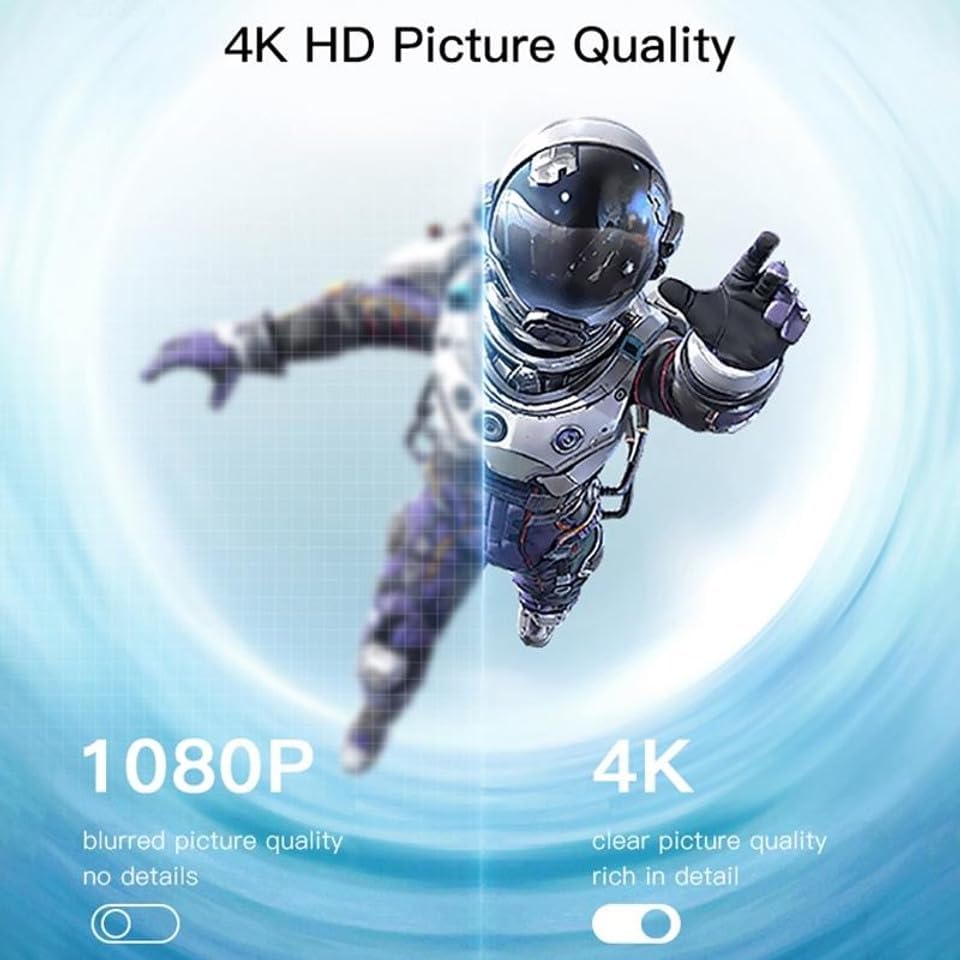
Image: A visual comparison demonstrating the difference between 1080P (blurred, no details) and 4K (clear, rich in detail) picture quality, highlighting the enhanced clarity offered by 4K resolution.
6.3 Horizontal and Vertical Screen Switching
The device supports flexible screen orientation, allowing you to switch between horizontal and vertical display modes freely, depending on your content and viewप्राथमिकता।

Image: Two display setups, one showing content in a standard horizontal landscape mode and the other in a vertical portrait mode, illustrating the device's ability to switch screen orientation.
7. मर्मतसम्भार
- उपकरणलाई नरम, सुख्खा कपडाले सफा गर्नुहोस्। तरल क्लिनर वा एरोसोल प्रयोग नगर्नुहोस्।
- सफा गर्नु अघि उपकरण अनप्लग गरिएको सुनिश्चित गर्नुहोस्।
- प्रयोगमा नभएको बेला यन्त्रलाई चिसो, सुक्खा ठाउँमा भण्डार गर्नुहोस्।
T. समस्या निवारण
- टिभीमा डिस्प्ले छैन: Ensure the dongle is properly plugged into the HDMI port and receiving power. Check that the TV input source is set to the correct HDMI port.
- Unstable connection/lag: Ensure the dongle's Wi-Fi antenna is positioned optimally. Reduce distance between the dongle and your Wi-Fi router/mirroring device. Check for interference from other wireless devices.
- Wi-Fi मा जडान गर्न सकिँदैन: Double-check the Wi-Fi password. Ensure the dongle is within range of your router. Try restarting the dongle and your router.
- कुनै अडियो छैन: Check the audio settings on your mirroring device and your TV. Ensure the TV's volume is not muted.
- मिररिङको लागि उपकरण फेला परेन: Ensure your mirroring device's Wi-Fi is on and it's connected to the same network as the dongle (if applicable). Restart both devices.
9. निर्दिष्टीकरणहरू
| सुविधा | निर्दिष्टीकरण |
|---|---|
| ब्रान्ड | YESIDO |
| मोडेल | TV10 4G |
| कनेक्टर प्रकार | HDMI |
| रङ | कालो |
| वस्तु आयाम (L x W x H) | ८६५ x ५९८ x ५५० मिमी |
| UPC | 723326980084 |
| ताररहित जडान | 2.4G वाइफाइ |
| अधिकतम रिजोलुसन | 4K HD |
10. वारेन्टी र समर्थन
वारेन्टी जानकारी र प्राविधिक सहयोगको लागि, कृपया खरिद गर्दा प्रदान गरिएको कागजात हेर्नुहोस् वा आफ्नो खुद्रा विक्रेतालाई सम्पर्क गर्नुहोस्। कुनै पनि वारेन्टी दावीको लागि आफ्नो खरिदको प्रमाण राख्नुहोस्।