
1. परिचय
This manual provides essential instructions for the safe and efficient use of your Brother DCP-L2605DW Auto Duplex Laser Printer. This multifunction device offers print, scan, and copy capabilities, designed for home and small office environments. Please read this manual thoroughly before operating the printer and keep it for future reference.

Image: The Brother DCP-L2605DW multifunction laser printer, a compact device for printing, scanning, and copying.
२. बक्समा के छ?
प्याकेजिङमा सबै कम्पोनेन्टहरू उपस्थित छन् भनी प्रमाणित गर्नुहोस्:
- Brother DCP-L2605DW Laser Printer Unit
- पावर केबल
- USB केबल
- स्थापना सीडी (ड्राइभर र सफ्टवेयरको लागि)
- Inbox Toner Cartridge (TN-2570XL, approximately 3000 pages yield)
3. सेटअप
२.१ अनप्याकिङ र प्रारम्भिक प्लेसमेन्ट
Carefully remove the printer from its packaging. Place the printer on a stable, flat surface with adequate ventilation. Ensure sufficient space around the printer for paper trays and cable connections.
३.२ टोनर कार्ट्रिज स्थापना
- प्रिन्टरको अगाडिको आवरण खोल्नुहोस्।
- ड्रम युनिट र टोनर कार्ट्रिज एसेम्बलीलाई यसको सुरक्षात्मक झोलाबाट हटाउनुहोस्।
- टोनरलाई समान रूपमा वितरण गर्न टोनर कार्ट्रिजलाई तेर्सो रूपमा धेरै पटक हल्लाउनुहोस्।
- Insert the toner cartridge firmly into the drum unit until it locks into place.
- Slide the drum unit and toner cartridge assembly back into the printer.
- अगाडिको आवरण बन्द गर्नुहोस्।
3.3 कागज लोड गर्दै
- Pull out the paper tray completely from the printer.
- तपाईंले लोड गरिरहनुभएको कागजको आकारमा फिट हुने गरी कागज गाइडहरू समायोजन गर्नुहोस्।
- Load up to 250 sheets of paper (up to 163 GSM) into the tray. Ensure the paper is flat and not curlएड।
- कागजको ट्रेलाई प्रिन्टरमा बिस्तारै धकेल्नुहोस् जबसम्म यो ठाउँमा क्लिक हुँदैन।
3.4 पावर जडान
Connect the power cable to the printer and then to a grounded electrical outlet. Turn on the printer using the power button.
३.१ जडान विकल्पहरू
Your printer supports multiple connectivity methods:
- USB 2.0: Connect the printer directly to your computer using the provided USB cable.
- ईथरनेट (LAN): Connect the printer to your network router or switch using an Ethernet cable for wired network access.
- Wi-Fi (Wireless LAN): Connect the printer to your wireless network. Follow the on-screen instructions on the printer's LCD display to configure Wi-Fi settings.
- वाइफाइ डाइरेक्ट: Allows direct connection from mobile devices without a router. Refer to the printer's LCD menu for Wi-Fi Direct setup.
१.३ चालक र सफ्टवेयर स्थापना
Insert the included Installation CD into your computer's CD-ROM drive and follow the on-screen instructions to install the necessary drivers and software. Alternatively, download the latest drivers from the official Brother support webसाइट।
भिडियो: छोटो ओभरview of the Brother DCP-L2605DW printer, highlighting its features and specifications. This video provides a visual summary of the product's capabilities and design.
4. सञ्चालन निर्देशनहरू
२.२ कागजातहरू छाप्ने
तपाईंको कम्प्युटर वा मोबाइल उपकरणबाट प्रिन्ट गर्न:
- Ensure the printer is powered on and connected to your device or network.
- तपाईंले छाप्न चाहनुभएको कागजात वा छवि खोल्नुहोस्।
- चयन गर्नुहोस् छाप्नुहोस् अनुप्रयोगको मेनुबाट।
- छान्नुहोस् Brother DCP-L2605DW तपाईंको प्रिन्टरको रूपमा।
- Adjust print settings such as paper size, orientation, and number of copies.
- को लागी Automatic Duplex Printing (2-sided printing), select the duplex option in your printer settings.
- क्लिक गर्नुहोस् छाप्नुहोस्.

Image: Icon representing automatic duplex printing, a feature that allows printing on both sides of the paper automatically.
५.४ कागजातहरू स्क्यान गर्दै
You can scan documents using the flatbed scanner:
- स्क्यानर गिलासमा कागजातलाई अनुहार तल राख्नुहोस्।
- From your computer, open the Brother ControlCenter software or a compatible scanning application.
- चयन गर्नुहोस् स्क्यान गर्नुहोस् and choose your desired scan settings (e.g., resolution, color mode, destination).
- स्क्यान सुरु गर्नुहोस्। स्क्यान गरिएको छवि तपाईंको तोकिएको स्थानमा बचत हुनेछ।
५.३ कागजातहरूको प्रतिलिपि बनाउने
प्रिन्टरबाट सिधै प्रतिलिपि बनाउन:
- स्क्यानर गिलासमा कागजातलाई अनुहार तल राख्नुहोस्।
- Use the control panel on the printer to select प्रतिलिपि गर्नुहोस्.
- Adjust settings such as number of copies, enlarge/reduce, and quality.
- थिच्नुहोस् सुरु गर्नुहोस् प्रतिलिपि गर्न सुरु गर्न बटन।
4.3.1 2-in-1 (ID) Copy Function
This feature allows you to copy both sides of an ID card onto a single sheet of paper.
- Place the ID card on the scanner glass, aligning it with the indicated marks.
- थिच्नुहोस् 2 मा 1 (ID) प्रतिलिपि नियन्त्रण प्यानलमा बटन।
- Follow the prompts on the LCD display to scan the first side, then flip the card and scan the second side.
- The printer will print both sides onto one page.

Image: Close-up of the printer's control panel, highlighting the '2 in 1 (ID) Copy' button for convenient ID card copying.
5. मर्मतसम्भार
६.२ टोनर कार्ट्रिज प्रतिस्थापन गर्दै
When the 'Toner Low' or 'Replace Toner' message appears on the LCD, it's time to replace the toner cartridge.
- प्रिन्टरको अगाडिको आवरण खोल्नुहोस्।
- Remove the drum unit and old toner cartridge assembly.
- Press the release lever on the drum unit and remove the old toner cartridge.
- Unpack the new TN-2570XL toner cartridge and gently shake it.
- Insert the new toner cartridge into the drum unit until it clicks.
- Slide the drum unit and new toner cartridge assembly back into the printer.
- अगाडिको आवरण बन्द गर्नुहोस्।
5.2 प्रिन्टर सफा गर्दै
नियमित सफाईले प्रिन्ट गुणस्तर कायम राख्न मद्दत गर्छ र प्रिन्टरको आयु बढाउँछ।
- बाहिरी: प्रिन्टरको बाहिरी भाग नरम, लिन्ट-रहित कपडाले पुछ्नुहोस्।
- स्क्यानर ग्लास: स्क्यानरको गिलासलाई नरम, सुख्खा कपडाले सफा गर्नुहोस्। जिद्दी दागहरूको लागि, कपडामा लगाइएको थोरै मात्रामा गिलास क्लिनर प्रयोग गर्नुहोस् (सिधै गिलासमा होइन)।
- Corona Wire: Periodically clean the corona wire inside the drum unit by sliding the green tab from left to right several times. Return the tab to its home position.
६.३ क्लियरिङ्ग पेपर जामहरू
If a paper jam occurs, the printer's LCD will display an error message. Follow the on-screen instructions or refer to the full user guide for detailed steps to clear the jam from various locations (e.g., paper tray, fuser unit, back cover).
T. समस्या निवारण
This section addresses common issues you might encounter. For more detailed troubleshooting, refer to the comprehensive user manual or Brother's support webसाइट।
- प्रिन्टरले प्रतिक्रिया दिइरहेको छैन: Check power connections, USB/Ethernet cables, and Wi-Fi status. Restart the printer and computer.
- खराब प्रिन्ट गुणस्तर: Check toner levels. Clean the corona wire. Ensure correct paper type and quality settings.
- कागज जाम: Follow the instructions in Section 5.3 to clear any jammed paper. Ensure paper is loaded correctly and not overfilled.
- नेटवर्क जडान समस्याहरू: Verify Wi-Fi password, network cable connection, and router status. Try restarting your router and printer.
- चालक समस्याहरू: Reinstall printer drivers from the installation CD or Brother's webसाइट।
7. निर्दिष्टीकरणहरू
| सुविधा | विवरण |
|---|---|
| प्रिन्टरको प्रकार | मोनोक्रोम लेजर |
| कार्यहरू | प्रिन्ट, स्क्यान, प्रतिलिपि |
| छपाइ गति (मोनोक्रोम) | १८ पीपीएम सम्म (पृष्ठ प्रति मिनेट) |
| प्रिन्ट रिजोल्युसन | 1200 x 1200 dpi सम्म |
| डुप्लेक्स मुद्रण | स्वचालित (२-पक्षीय) |
| जडान | Hi-Speed USB 2.0, Ethernet, Wi-Fi (IEEE 802.11a/b/g/n), Wi-Fi Direct |
| मेमोरी | १२८ एमबी |
| कागज इनपुट क्षमता | २५० पानाहरू (मानक ट्रे) |
| मिडिया प्रकारहरू | सादा कागज |
| मिडिया आकारहरू | A4, Letter, B5 (JIS), B5 (ISO), A5, A6, Executive, Legal, Folio, etc. |
| स्क्यानर प्रकार | फ्ल्याटबेड |
| प्रतिलिपि गति (मोनोक्रोम) | Up to 30 cpm (copies per minute) |
| आयाम (डी एक्स डब्ल्यू एक्स एच) | ३७D x ३७W x ७८.४H सेन्टिमिटर |
| वजन | ०.६ किलोग्राम |
| मिल्दो ओएस | विन्डोज, म्याक, लिनक्स |
| मोबाइल अनुकूलता | एन्ड्रोइड, आईओएस |
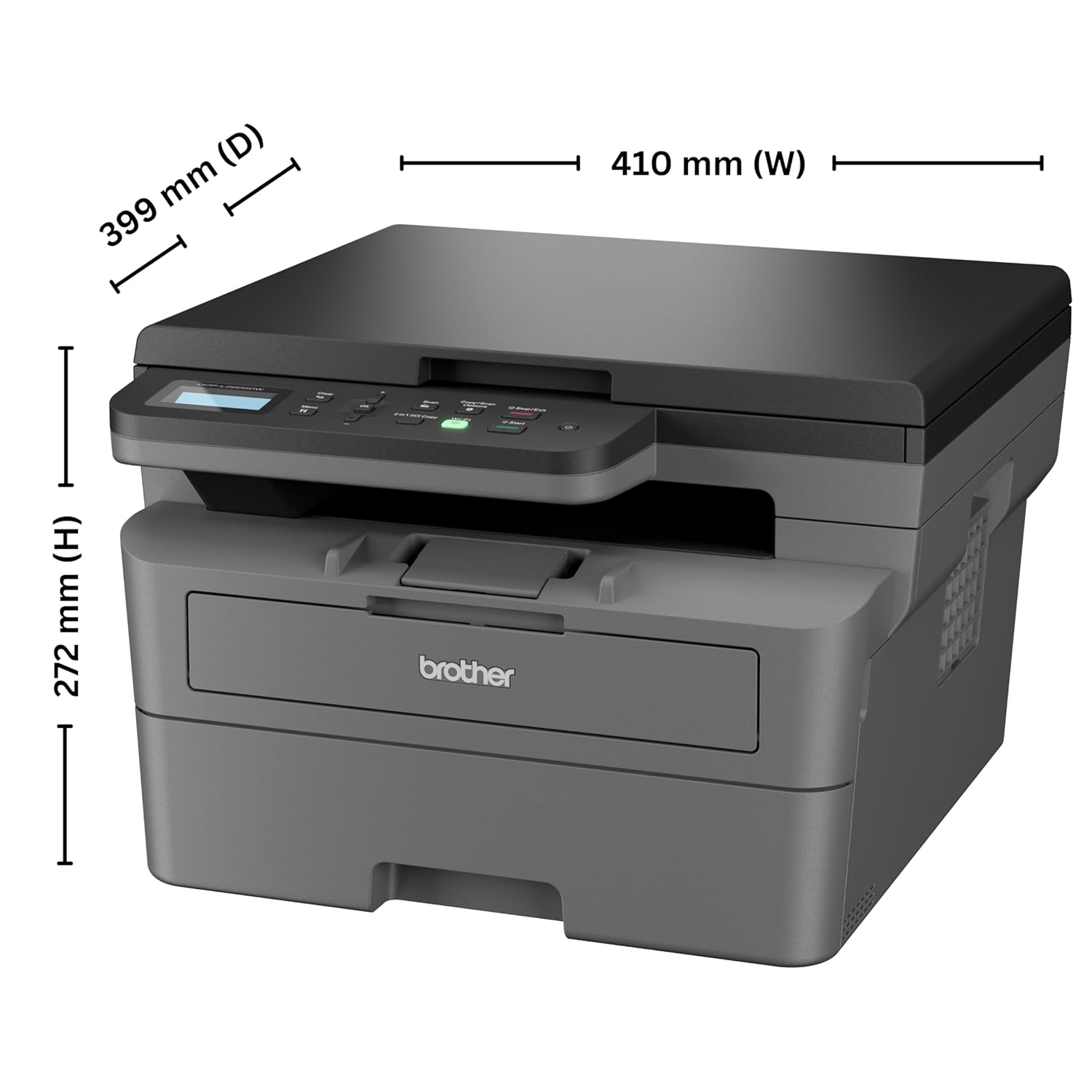
Image: Diagram showing the dimensions of the Brother DCP-L2605DW printer: 399 mm (D), 410 mm (W), 272 mm (H).
8. वारेन्टी जानकारी
Your Brother DCP-L2605DW printer comes with a २ वर्षको निर्माता वारेन्टी. Please retain your purchase receipt as proof of purchase for warranty claims. For detailed terms and conditions, refer to the warranty card included with your product or visit the official Brother webसाइट।
१०. समर्थन र सम्पर्क
For technical assistance, product inquiries, or service requests, please contact Brother support:
- टोल-फ्री नम्बरहरू:
- 1-800-222-422 (For MTNL and BSNL users)
- 1-800-209-8904 (For Others and all Mobiles)
Operating Hours: Monday to Friday - 8:30 AM - 6:30 PM | Saturday - 9:00 AM - 6:00 PM
- इमेल समर्थन: customercare@brother.in
- व्हाट्सएप समर्थन: १३०० ५५६ ८१६
- आधिकारिक Webसाइट: www.brother.in

Image: Graphic displaying Brother's customer support contact details, including toll-free numbers, email, WhatsApp, and webसाइट।