परिचय
This manual provides essential information for the proper installation, operation, and maintenance of your FPBIGCHA MT8072iP HMI Touch Screen. The MT8072iP is a 7-inch Human Machine Interface designed for industrial automation applications, featuring USB and Ethernet connectivity. It offers clear images and touch/key functions for efficient control and monitoring.
सेटअप
Follow these steps to set up your MT8072iP HMI unit. Ensure all power is disconnected before making any connections.
1. पावर जडान
Connect the 24V DC power supply to the designated terminal block labeled FG 24VDC on the rear panel. Ensure correct polarity.
६.१.१। सञ्चार पोर्टहरू
- COM1 (RS232): Use this port for RS232 serial communication with compatible devices.
- COM2 (RS485): Use this port for RS485 serial communication, suitable for longer distances and multi-drop networks.
3. USB and Ethernet Connections
- USB पोर्टहरू: Connect USB devices such as flash drives or programming cables to the available USB ports.
- इथरनेट पोर्ट: Connect an Ethernet cable to the Ethernet port for network communication and data exchange.
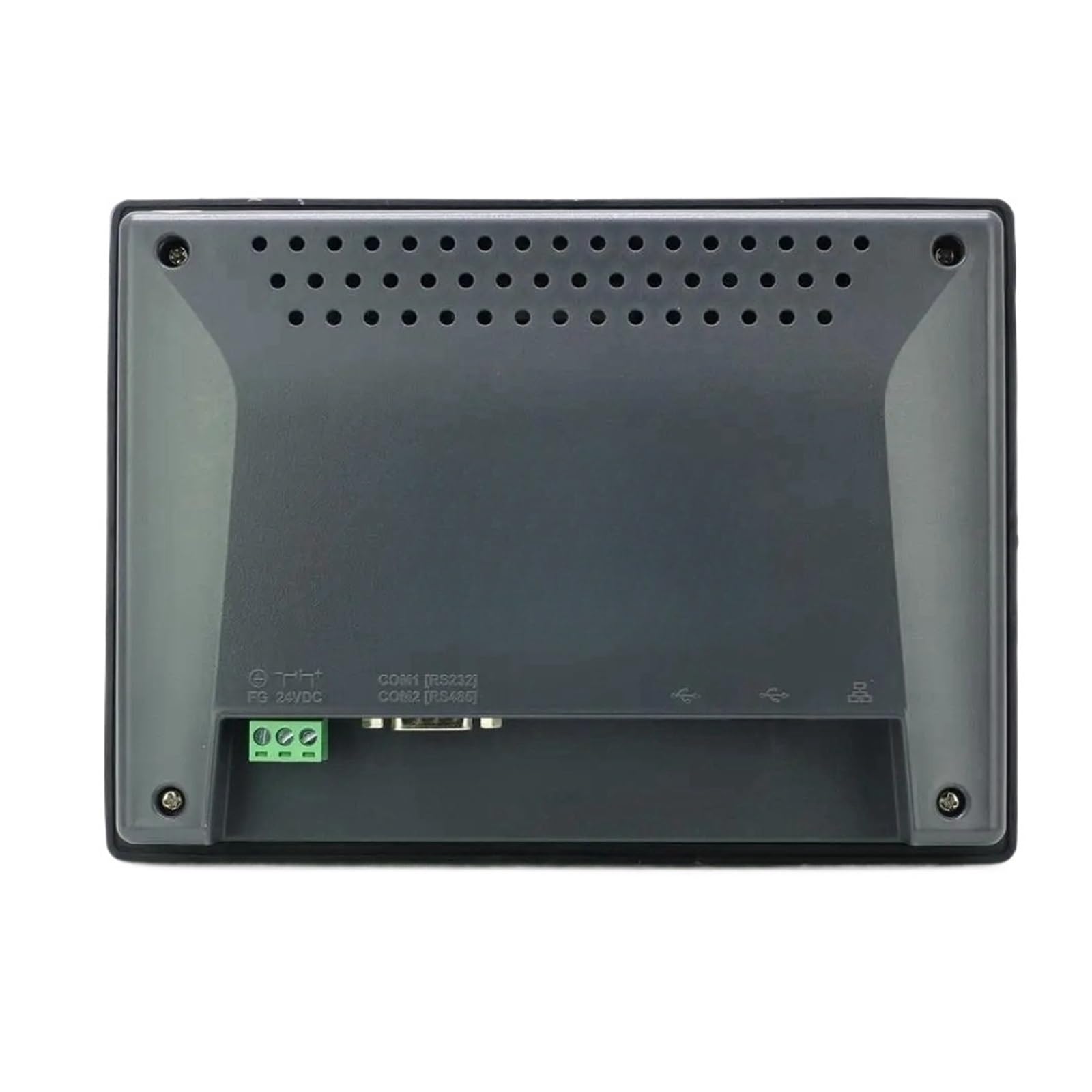
Figure 1: Rear panel of the MT8072iP HMI. This image displays the various connection points including the FG 24VDC power input, COM1 (RS232) and COM2 (RS485) serial ports, two USB ports, and an Ethernet port.
सञ्चालन
The MT8072iP HMI is designed for intuitive operation through its 7-inch touch screen and integrated key functions.
१. पावर अन/अफ
Once the power supply is connected, the unit will typically power on automatically. To power off, ensure proper shutdown procedures are followed as per your system's configuration to prevent data loss.
४.२. टच स्क्रिन अन्तरक्रिया
Navigate through menus and interact with controls by gently touching the screen. The display resolution of 800x480 ensures clear visibility of graphical interfaces.
3. मुख्य कार्यहरू
Utilize any physical keys on the unit for specific functions as defined by the application software. These keys often provide quick access to critical operations or navigation.
मर्मतसम्भार
Regular maintenance ensures the longevity and optimal performance of your HMI unit.
७.१। सरसफाई
स्क्रिन सफा गर्न र गasing, नरम, लिन्ट-रहित कपडा प्रयोग गर्नुहोस् dampened with a mild, non-abrasive cleaning solution. Avoid harsh chemicals, solvents, or abrasive materials that could damage the display or housing. Ensure the unit is powered off before cleaning.
३.३। वातावरणीय अवस्थाहरू
Operate the HMI within its specified temperature and humidity ranges. Avoid exposure to direct sunlight, excessive dust, moisture, or corrosive environments. Ensure adequate ventilation around the unit.
समस्या निवारण
यो खण्डले तपाईंले सामना गर्न सक्ने सामान्य समस्याहरूको समाधान प्रदान गर्दछ।
- कुनै शक्ति छैन:
Check the 24V DC power supply connection. Ensure the power source is active and the wiring to the FG 24VDC terminal block is secure and correctly polarized. - प्रदर्शनले काम गरिरहेको छैन:
Verify the unit is powered on. If the backlight is off, check display settings within the HMI software. If the screen remains blank, contact support. - टच स्क्रिन अनुत्तरदायी:
Restart the HMI unit. If the issue persists, recalibrate the touch screen if the option is available in the system settings. Ensure the screen is clean and free from obstructions. - सञ्चार त्रुटिहरू:
Check all serial (RS232/RS485) and Ethernet cable connections. Verify communication settings (baud rate, parity, IP address) in the HMI software match the connected device.
निर्दिष्टीकरणहरू
| सुविधा | निर्दिष्टीकरण |
|---|---|
| डिस्प्ले साइज | 7 इन्च |
| संकल्प | ३२० x २४० पिक्सेल |
| जडान | USB, Ethernet, COM1 (RS232), COM2 (RS485) |
| आवेदन | औद्योगिक स्वचालन उपकरण |
| इनपुट भोल्यूमtage | 24V DC |
| वस्तुको वजन | 1.1 पाउन्ड |
| प्याकेज आयामहरू | १० x ३ x ३ इन्च |
| विधानसभा आवश्यक | छैन |
वारेन्टी जानकारी
This product comes with a standard manufacturer's warranty. For detailed information regarding warranty terms, duration, and claim procedures, please refer to the documentation provided with your purchase or contact the seller directly.
समर्थन
For technical assistance, product inquiries, or further support, please contact your vendor or the manufacturer's customer service. Have your product model number (MT8072iP-Ethernet) and purchase details ready when contacting support.